Let’s imagine this situation. Someone finds your Shopify store, they pick a product, enter their email, and start checking out, and then suddenly leave. here are many reasons why this could have happened: maybe they got a call, maybe they got nervous about the price, or, most basically, they could have just forgotten about it.This happens all the time, and it doesn’t always mean the buyer’s response is “no”; very often it can be ” not right now”.
And this is exactly where the abandoned checkout emails come in. Abandoned checkout emails are friendly little reminders sent to people who started checking out but never finished it. These are one of the easiest ways to recover sales that were about to be lost, and actually, Shopify has a built-in way to set them up.
What’s the Difference Between an Abandoned Cart and an Abandoned Checkout?
This is something people usually mix up, so let’s clear it up.
- Abandoned cart: Someone adds a product to their cart but leaves before starting checkout.
- Abandoned checkout: Someone starts checking out (usually by entering their email or contact details) but leaves before paying.
Shopify’s built-in emails are for abandoned checkouts. This makes sense because once someone has entered their email, you actually have a way to contact them.
Why These Emails Work
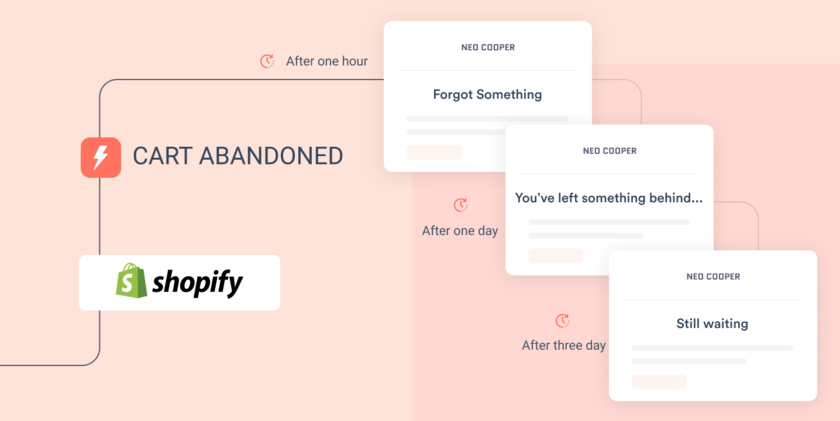
People who leave checkout often haven’t decided against the product. They got interrupted, or they wanted to compare prices first. A reminder email puts the product back in front of them with a link that returns them to their cart. Once you’ve set it up, it sends itself, and it only goes to people who had already started to buy, so it takes little effort to keep running.
How the setup works
To set up abandoned checkout emails, turn on automatic emails in your Shopify admin, choose who receives them and how long after abandonment they go out, and edit the wording so it sounds like your brand. Then send yourself a test and look at the results every so often.
Shopify has been moving these settings from checkout settings into the marketing section, and some stores now see them under a different name, so if you can’t find them in one place, try the other. What you see can also depend on your plan, so if a setting is missing, check that first. Shopify’s help pages list the exact steps for your version.
Check your consent settings too. Shopify’s automatic recovery emails go to customers who agreed to receive marketing emails, so if your checkout never asks for consent, some of those emails won’t be sent. Make sure your checkout includes a sign-up checkbox.
You can also email a single customer yourself from your abandoned checkouts list, which is a good way to try it before you automate anything.
Getting the Timing Right
When the email goes out affects whether it works. Too soon, and you may reach someone who’s still deciding. Too late, and they’ve forgotten what they were looking at.
Send the first email a few hours after someone abandons checkout, while they still remember what they were looking at. If your tools let you send more than one, a second email the next day and an optional third a day or two later give people more chances to come back without crowding their inboxes. After a few weeks, look at the results and change the timing if it isn’t working.
What to Put in Your Email
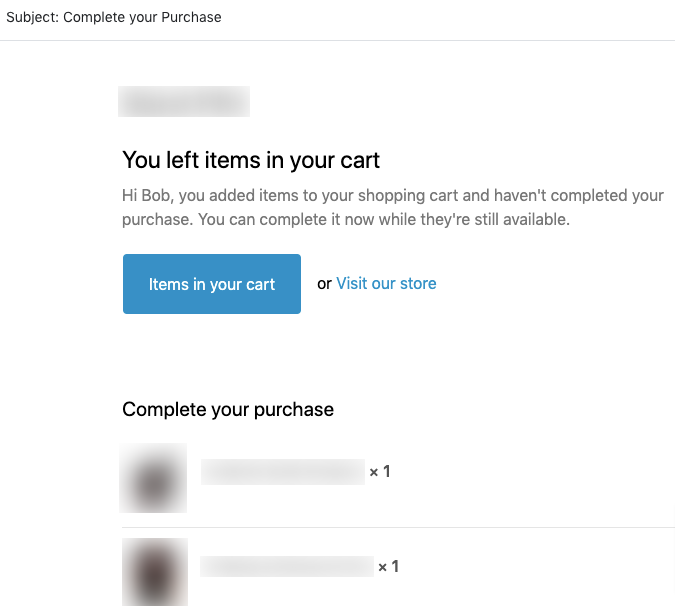
Shopify’s default abandoned checkout email is plain, and a few edits make it read as if it came from a person.
Start with the subject line. “Still thinking it over?” sounds more natural than “You left items in your cart,” and shorter is better. Put the product they left behind in the email, with its photo, so they can see what they were buying. Add a single button that takes them back to checkout, and skip other links that could send them elsewhere. If you know what usually makes your customers hesitate, whether that’s returns, delivery times, or payment security, answer it in a sentence. Write it the way you’d talk to someone in your shop: warm, short, and not pushy.
Here’s an example:
Subject: Still thinking it over?
Hi there, you left something in your cart. Your items are saved, so you can pick up right where you stopped. If you have any questions about sizing or shipping, just reply to this email, and we’ll help.
[Complete your order]
Should You Offer a Discount?
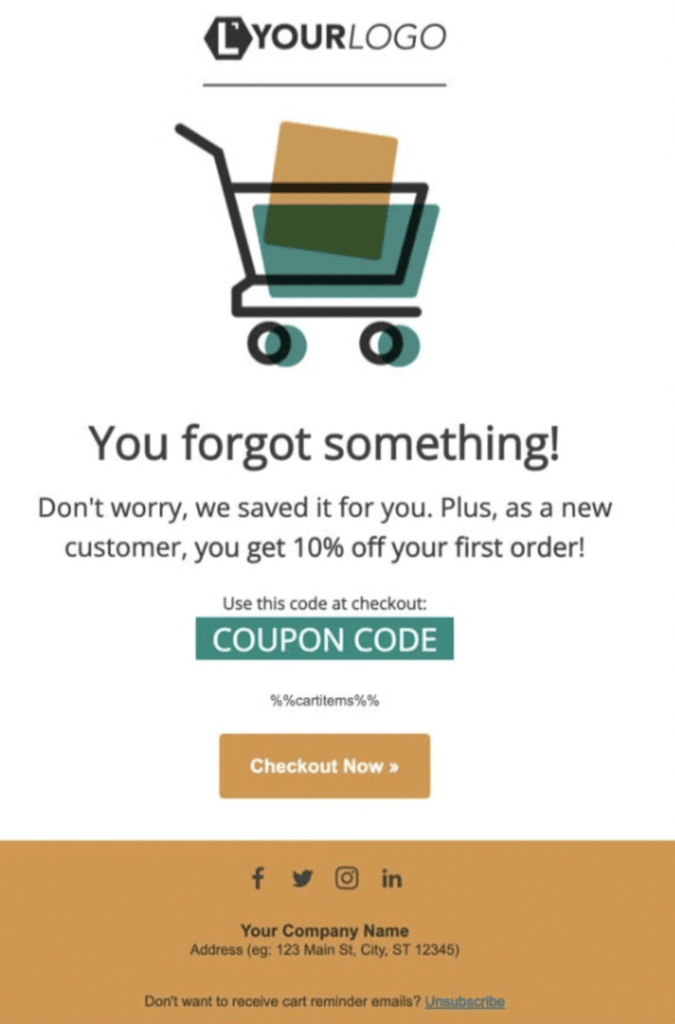
Adding a discount to every recovery email can be tempting. It can backfire. Shoppers who learn that abandoning a checkout gives them a coupon may start doing it on purpose. Use a plain reminder for the first email. Save any discount for a later email in the sequence, or for a store where price really is the main obstacle. Free shipping or a note about your return policy can also nudge people back without cutting into your margins. Before you edit anything, make sure you’re working on the abandoned checkout template and not a similar one, like an abandoned cart template, since Shopify keeps separate templates for different situations and they’re easy to confuse. Some store owners have had emails fail to send after changing the wrong template. Once you’ve made a change, send yourself a test and open it on your phone, because a lot of your customers will read it there.
Why Aren’t My Emails Sending?
If things don’t seem to work, check these first:
- Is the automatic option turned on?
- Did the customer agree to marketing emails? If not, Shopify may skip them.
- Are you using the right template? It should be the abandoned checkout one.
- Is an app doing the same job? Some apps send their own recovery emails, which can cause double messages or confusion.
- Was the checkout started somewhere that doesn’t send these emails? Orders from some sales channels, like Shopify POS, don’t get recovery emails.
Common Mistakes to Avoid
- Writing a long email. A few lines and one clear button is plenty.
- Sending too many reminders. One to three is usually enough. More reminders start to feel like spam.
- Offering a discount every time. It can teach shoppers to abandon on purpose.
- Never testing the email. Broken links or odd formatting can lose sales you were about to win back.
- Ignoring mobile. Most people read emails on their phones.
- Setting it up once and then forgetting about it. Check your results from time to time and keep improving.
Frequently Asked Questions
- Can I send an abandoned checkout email manually? Yes. You can open an abandoned checkout from your list and send a recovery email to that customer. It’s useful if you haven’t set up automation yet.
- How long does Shopify keep abandoned checkouts? Not forever. Shopify clears out old ones after a while, so don’t use that list for long-term storage.
- Do I need an app for this? No, Shopify’s built-in option is enough to get started. Apps can add extras like longer email sequences or text messages, but they’re optional.
- Will every abandoned checkout get an email? No. Customers generally need to have given their email address, and Shopify’s automatic emails go to those who agreed to receive marketing.
- How soon should the first email go out? Within a few hours is a good starting point, while the shopper still remembers what they were looking at. Test and adjust from there.
Abandoned checkout emails don’t take much work. You switch them on once, and they send themselves to people who have already started to buy. Write the email in your own voice, send yourself a test, and look at the results every so often. For some shoppers, a short reminder is all they needed to finish the order.


