Let’s say you added a review widget in the spring, a popup tool in the summer, and a loyalty program before the holidays. By January, your homepage takes five seconds to load, and you can’t say which one did it. That’s how most slow stores got that way. Each install looked harmless, and the slowdown only showed up in the total.
It matters because shoppers leave pages that drag, often before they’ve seen a single product. Every app has a monthly fee and a load-time cost, and only the fee shows up on an invoice. Here’s how to pick apps with both in mind.
What apps do to your pages
Most apps work by adding code to your storefront. When someone opens a page, their browser downloads that code and runs it. A small script costs almost nothing. A heavy one can cost a lot, particularly if it pulls in its own fonts, images, or scripts from another company’s server.
A few habits make it worse. Some apps load on every page, even where they do nothing. A review widget has no reason to run on your contact page. Apps also stack, so ten small ones can double your load time. And some leave code behind after you remove them, so snippets keep loading from your theme files long after the app is gone.
When you compare apps, ask how much each one adds to every page and whether you could remove it cleanly.
Get a baseline first
Without a “before” number, you can’t tell whether an app slowed anything down. Set aside ten minutes before you install anything. Put your homepage, one collection page, and one product page through Google PageSpeed Insights, and write down the mobile score for each, since a good share of your shoppers will be on phones. Google also reports three figures that are worth saving. Largest Contentful Paint measures how long the main content takes to show up, Interaction to Next Paint measures how quickly the page reacts to a tap, and Cumulative Layout Shift measures how much things jump around while the page loads.
Scores wobble between tests, so run each page two or three times and use the middle result. Shopify also shows a theme speed score in your admin under Online Store, although that report moves around. Save the numbers somewhere you’ll find them again.
Reading the listing
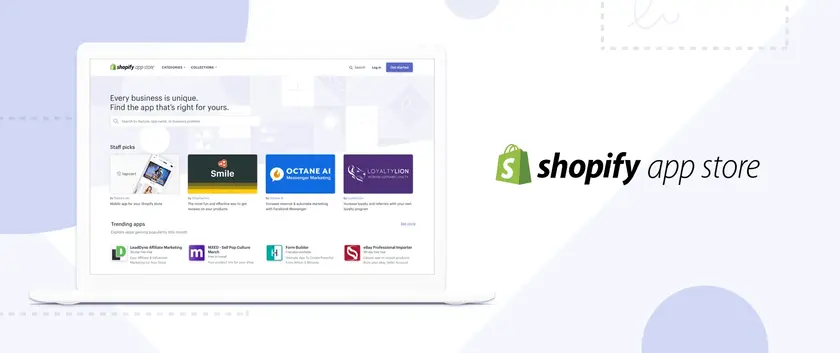
Treat the App Store listing like a product page. Start with the badges. Apps marked “Built for Shopify” have met performance standards, which isn’t a guarantee but beats having nothing. Some listings also show an estimated effect on storefront speed.
Sort the reviews by most recent and search for “slow,” “lag,” “speed,” and “broke my theme.” One angry review is noise. Several recent ones describing the same problem are not. Notice how the developer replies as well. A reply that resolves the issue is a good sign, and silence is a bad one.
Check how the app installs. Apps that use app embeds can be switched on and off from the theme editor, which makes testing and removal easy. Apps that ask you to paste code into your theme files are harder to remove cleanly.
Apps that tend to be heavy
Popups and email capture tools are common offenders, especially animated ones with custom fonts. Live chat often loads a full chat system on every page. Review and social proof apps pull images and scripts into your product pages. Currency converters and translation apps frequently rewrite the page after it loads. Bundle and upsell builders carry a lot of code, and so do tracking pixels from several ad platforms at once.
Plenty of stores need most of these, so the rule isn’t to avoid them. It’s to have one tool per job. Two popup apps, or three tracking tools, means paying for the same slowdown twice.
Removing an app
Uninstalling doesn’t always clean up after itself. Some apps remove their code, and others leave snippets behind in your theme. After you uninstall one, search your theme files for the app’s name, including the main layout file and the snippets folder. If you’re not comfortable in theme code, ask the developer or a Shopify expert, or look for removal instructions on the app’s help pages. Do any editing on a duplicate.
Then re-run your speed test. If the scores are back at your baseline, you’re done. If they aren’t, something is still loading.
Audit every few months
Once a quarter, go through your installed apps and ask three things of each: do I still use it, is it paying for itself, and does it slow the store more than it’s worth? Remove the ones that fail. Seasonal apps like countdown timers and gift wrap tools make an easy start, since you can take them out when the season ends and add them back next year. Re-run your baseline each time you do this, so a slow creep gets caught while it’s still small.

Frequently Asked Questions
- How do I tell if an app is slowing my store down?
Test your store before you add the app. Put your homepage, one collection page, and one product page through Google PageSpeed Insights, and note the mobile score for each. After the install, test the same three pages again. Scores wobble from run to run, so test each page a few times and go with the middle number.
Three metrics are worth saving alongside each score. Largest Contentful Paint is how long the main content takes to appear. Interaction to Next Paint is how quickly the page reacts to a tap. Cumulative Layout Shift is how much the layout jumps around while loading. If any of them gets clearly worse after the install, the app is the likely cause.
- What should I look for when choosing a Shopify app?
On the listing, start with the most recent reviews and search them for “slow” or “lag.” Then check how the app installs. If it uses an app embed, you can switch it off from the theme editor, which makes testing and removal easy. The feature list is worth a look too: an app that does ten things may load code for all ten, even if you only need two. A “Built for Shopify” badge is a good sign, but run your own speed test anyway.
- Can I improve my Shopify store’s speed without installing more apps?
Often, yes. Look through your theme settings first, since many themes already include an announcement bar, a size chart, and a sticky add-to-cart button. Shopify also handles discount codes and abandoned checkout emails by itself. A small edit in the theme editor can replace an app too, like a line in the announcement bar that says “Free shipping over $50.”
A few kinds of apps load more code than the rest. Popups and live chat are the usual ones, since both run on nearly every page. Review widgets, translation and currency tools, and bundle builders come next. Several ad platforms’ tracking scripts running together can also weigh more than you’d expect. But two apps in the same category can behave very differently, so check each one on its own. A few times a year, go through your app list and remove whatever nobody uses. The slowest stores usually aren’t the ones with one bad app. They’re the ones with a dozen that nobody has looked at in a year.
