Picture a clothing shop where the shirts are piled in with the shoes, and there are no signs. Most people would turn around and walk out.
An online store does the same thing when its collections are a mess. A shopper lands on the site, can’t find what they came for within a few seconds, and leaves, even if the products are good. Fixing it mostly means thinking the way a shopper does: what would someone type into a search bar, and where would they expect to find it?
Below is how to set that up.
What Are Collections Exactly?
A collection is a group of products on your Shopify store, like an aisle in a shop. “Dresses” is one, and so is “Gifts under $50” or “New arrivals.”
Shoppers use collections to browse, and your navigation menu is built from them. You can also send ad and email traffic straight to a collection page, and search engines pick up the page’s title and description. The better they’re set up, the less work each of those jobs takes.
Manual vs. Automated Collections
Shopify has two kinds of collections.
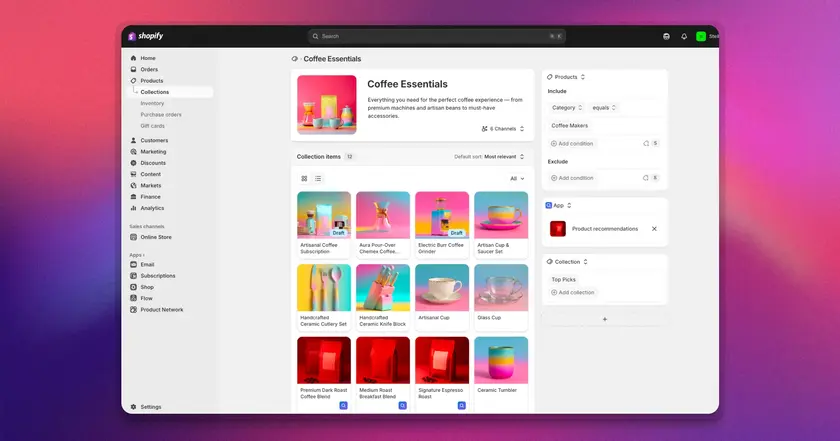
With a manual collection, you choose each product yourself. That suits small, hand-picked groups like “Staff Favorites” or a holiday gift guide.
An automated collection runs on rules. You might tell Shopify to include every product tagged “summer,” every product from one brand, or everything under $30, and any new product that matches joins the collection on its own. Once your catalog gets large, this saves hours, since you’re not adding each new item by hand.
The catch is that rules only work if your products are labeled consistently. If half your summer items are tagged “summer” and the rest “Summer 2025,” the collection will miss some.
Get Your Product Details in Order First
Automated collections pull from four fields: product type, tags, vendor, and price. If those fields are inconsistent, the collections will be too.
Tags are where it usually goes wrong. Tag one product “tee,” another “t-shirt,” and a third “tshirts,” and Shopify sees three different tags, so a rule that looks for one will skip the other two. Choose a single spelling and use it every time.
Fill in the product type on every product, even the odd ones.A blank product type won’t match any rule built on that field.
Think Like a Shopper, Not Like a Store Owner
Name and group collections the way your customers think, not the way you do. You know your catalog inside out, but a shopper doesn’t know your internal product names or how things are sorted in your stockroom.
A useful test is to picture yourself landing on the store for the first time and asking what you’d click first. Shoppers usually go by one of a few routes:
- Product type, such as shirts, pants, or bags
- Who it’s for, such as men, kids, or pets
- Occasion, such as a wedding or back to school
- Budget, such as “Under $25”
- A problem they’re trying to solve, like dry skin or a small apartment
Pick the two or three that fit your store. A skincare shop might organize by skin concern and price, while a clothing shop might use product type and occasion.
Keep the Structure Simple
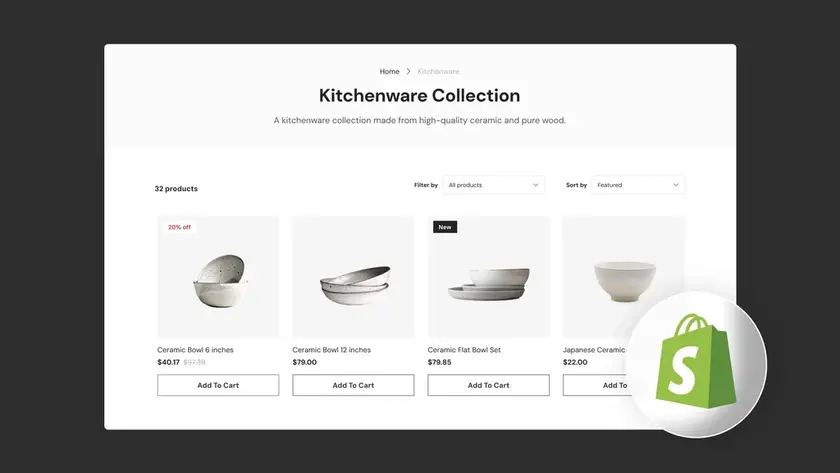
More collections isn’t better. A menu with 40 options leaves shoppers stuck, and dozens of tiny collections are a pain to keep up.
Start with a handful of main categories that together cover everything you sell. Add a sub-category only when it clearly helps someone find something. A collection with only two products doesn’t need its own page. Make sure no product ends up somewhere a shopper wouldn’t think to look, and remember that one product can sit in several collections, so a summer dress can appear under both “Dresses” and “Summer.”
To check your setup, imagine a first-time visitor looking for something specific. If they can’t get to it within two or three clicks, cut something.
Give Collections Clear Names
Name a collection after what’s in it. “Women’s Sneakers” tells a shopper what they’ll find. “Step Into Style” could be sneakers, sandals, or socks, and someone in a hurry won’t stop to guess. If you like a playful name, put it in a line of text under the clear title.
A plain title also gives search engines something to work with, since the collection name usually ends up in the page title and the main heading.
Set Up Helpful Sorting
Shopify lets you sort the products inside a collection by best-selling, newest, price, alphabetical order, or manual order.
Best-selling is a sensible default for most collections, since products that sell well tend to keep selling. Sort by hand when you want to choose the top spots yourself, for example, in a collection you’re promoting. “New arrivals” should go newest first.
Whichever you pick, check the first row or two. Those are the products most shoppers see before they scroll, so they should be ones you’re happy to lead with.
Create a Few Special Collections
Alongside your main categories, four extra collections are worth setting up.
A “Best sellers” collection gives first-time visitors a quick way to see what other people buy. A ‘New Arrivals’ collection can run on a rule based on either a ‘new’ tag or the product’s creation date, so it stays current without you editing it by hand. A “Sale” collection gives bargain hunters one place to look. And a “Gifts” collection earns its keep around the holidays, especially if you split it by price, like “Gifts under $50.”
People who don’t know what they want yet tend to start with these, which makes them some of the most-visited pages on many stores.
Make Collections Easy to Reach
A collection nobody can find won’t sell anything, so link each one from somewhere people already look.
Start with your main menu. Put your top categories there and keep the list short, since a menu with a dozen items is hard to scan. In Shopify, menus live in your admin under Content or Online Store, depending on your version.
Next, use your homepage. Give your key collections a spot with a strong image, so a shopper can click straight through from the top of the page.
Then point your emails and ads at collection pages instead of single products. A collection shows several related items at once, so someone who isn’t sold on the first one has others to look at.
Each collection page also needs an image and a sentence or two of description, so visitors know what they’re looking at.
Common Mistakes to Avoid
- The first mistake is having too many. If a collection holds three products, fold it into a bigger one.
- The second is sloppy tags. A product tagged “tee” and another tagged “t-shirt” won’t land in the same automated collection, and nothing will warn you that it happened.
- The third mistake is names that don’t say what’s inside. If a shopper has to guess, rename it.
- Mobile usability is the fourth. A big share of shoppers browse on their phones, so open your store on yours and tap through the menu and a few collection pages. If anything is hard to read or hard to tap, fix it.
- The last mistake is leaving collections untouched. Check them when you add new products or run a season’s promotion, and remove the ones that no longer fit.
Frequently Asked Questions
- Should I use manual or automated collections?
Use automated ones when you have a large or growing catalog, since new products join on their own. Use manual ones for small groups you pick by hand, like a holiday gift guide. Plenty of stores run both. - How many collections should I have?
Enough that shoppers can find what they’re after, and no more. Begin with a few main categories and add another only when you notice people can’t find something. - Can one product be in more than one collection?
Yes. A summer dress can sit in “Dresses,” “Summer,” and “Gifts under $100” at the same time, and each placement gives shoppers one more way to reach it. - How do I know if my collections are working?
Look at your analytics to see which collections get visits and which lead to orders. Then test it yourself: pretend you’re a new customer looking for one specific item and see how long it takes.
Collections work when a shopper can find what they came for without thinking about it. To get there, make your tags and product types consistent, group items the way customers would look for them, name each collection after what’s in it, and cut any that only hold a couple of products. Then open your store on your phone every month or so and try to find a specific item. If it takes more than a few taps, fix whatever got in the way.
