At some point, a product will sell out. Maybe it went faster than you planned, maybe a supplier is late, or maybe you’ve decided to stop selling it altogether. Either way, the product page is still live, and you have to decide what to do with it.
Deleting it right away can cost you the search traffic and links that page has built up. Leaving it untouched isn’t great either, because a shopper who lands on a bare “Sold out” button has no reason to stay. What you do depends on one thing: will the product be back, or is it gone for good?
Both cases are covered below.
First, Ask: Is It Temporary or Permanent?
This one question determines almost everything.
- Temporarily out of stock: you plan to get it back. Maybe a restock is on the way, or it’s a seasonal item.
- Permanently out of stock: you’ll never sell it again. It’s discontinued, or the supplier is gone.
The right move is different for each, so let’s take them one at a time.
If It’s Temporary: Keep the Page Live
If a product is coming back, leave its page where it is.
That page may already have search rankings, links from other sites, and a record of visitors, and deleting it throws all of that away. Left alone, it’s ready to sell the day the product returns. Search engines see products go in and out of stock all the time, so a ‘Sold out’ label for a few weeks won’t hurt the page by itself. The real question is what a shopper sees when they get there.
Say it’s out of stock
Most Shopify themes automatically change the ‘Add to cart’ button to ‘Sold out’ when stock hits zero. That’s a start, but a short line near the title helps more, something like “Out of stock right now, back soon.” If you know the date, give it. “Back in stock in late March” lets people decide whether to wait.
Offer a Back-in-Stock Alert
A shopper who finds a sold-out product doesn’t have to leave with nothing. Add a “Notify me when it’s back” button that takes their email and sends a message once the item is in stock. That can bring back a sale you would have lost, and you end up with a new email address as well.
Shopify doesn’t include a built-in back-in-stock alert tool for every plan, so you’ll probably need an app. Several offer free plans. Like any app, it adds some load time, so test your store before and after you install it.
Show Related Products
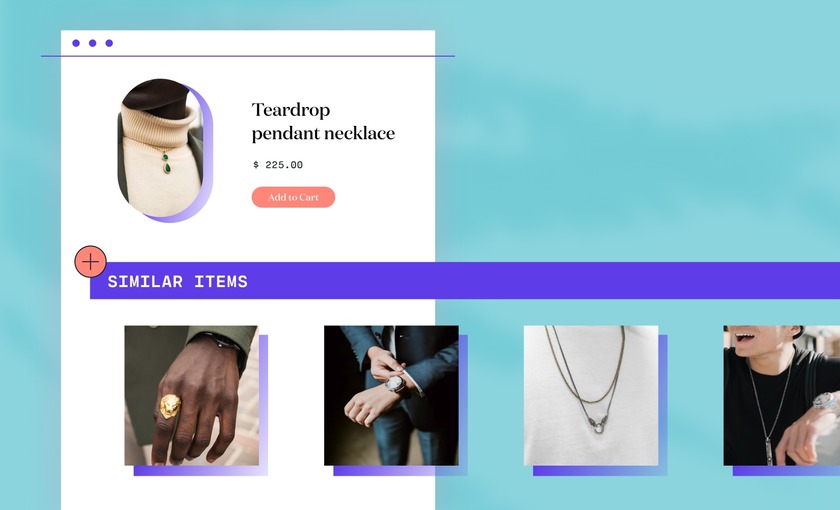
Someone who lands on a sold-out page was probably looking to buy that kind of thing, so show them what else you have. Many themes can add a row of related products under the description, and you can also link to a similar item by hand. A shopper with an alternative in front of them may order it, whereas one without will go back to Google.
Check Your Product Data
Behind each product page there’s a block of structured data that tells search engines the price and whether the item is in stock. Many Shopify themes add it automatically and switch it to “out of stock” when the inventory reaches zero. You can check yours by pasting a sold-out product’s URL into Google’s Rich Results Test, which shows what Google reads from the page and whether the availability is marked correctly.
Consider Pre-Orders
If a product is on its way back and your customers will wait, you can take orders before it arrives. In Shopify, the setting is “Continue selling when out of stock” in the product’s inventory section. Use it carefully. You’re taking money for something you don’t have yet, so only turn it on if you’re confident about the restock, and put the expected ship date near the button. A pre-order app can add the label and the message for you.
If It’s Permanent: Choose the Right Exit
When a product is gone for good, you have a few options. The best one depends on whether you have something similar to offer.
Option 1: Redirect to a similar product
When you sell a newer version or a nearly identical item, set up a 301 redirect from the old page to the new one. A 301 tells search engines the page has moved for good, and it carries most visitors and some of the old page’s search value over to the new URL. Send the redirect to something that makes sense for the person who clicked. A shopper looking for last year’s blue running shoe wants this year’s model, not a random bestseller.
Option 2: Redirect to the best matching collection
If you’ve dropped a product and have nothing like it, redirect to the collection it belonged to. Someone who clicks an old link to a discontinued blue running shoe could land on your “Running Shoes” collection, which at least shows them what you do sell.
Option 3: Keep the page with a “discontinued” note
A page that receives steady traffic can stay live. Add a clear “discontinued” note near the title with links to similar items. It takes more effort to maintain than a redirect, but it keeps the traffic and the links that point to it.
Option 4: Let it go
A page with almost no traffic and no good replacement can come down. Visitors who reach it will see a ‘Not Found’ page, and that’s acceptable. Search engines handle pages disappearing all the time.
What Not to Do
Sending every dead URL to your homepage is tempting, but a shopper who clicked a link to a specific product ends up on a page that has nothing to do with it and has to start over. Google can also treat that kind of redirect as a “soft 404,” an error page in disguise. Redirect only to a page that matches what the visitor was looking for.
Old pages also pile up. Suppose your store has dozens of empty product pages. Set aside an hour and sort through them. Keep the ones that still get visits, redirect the ones with a close match, and remove the rest.
Frequently Asked Questions
- Will out-of-stock products hurt my SEO?
Usually not. Products sell out in every store, and search engines see it all the time. Trouble starts when a page gets deleted with no redirect, or when a sold-out page is left with nothing on it but a grayed-out button. - Should I delete a product page when it sells out?
Usually not, particularly if the product is on its way back. Keep the page live and state that the item is out of stock, with the restock date if you have one. - What’s a 301 redirect?
It’s an instruction that sends anyone who opens an old URL to a new one, and it tells search engines the move is permanent. A shopper who clicks a link to a discontinued product lands on the replacement, and Google learns to list the new page in place of the old one. - How do I know which old pages still get traffic?
Open your analytics and sort the old product pages by visits, then look at which ones people reach from search. The pages with traffic deserve a redirect or a “discontinued” note. The ones nobody visits can go.
A sold-out product doesn’t hurt your search rankings on its own. If it’s coming back, keep the page live and add a restock date or a back-in-stock signup. If it’s gone for good, redirect it to the closest match, or take it down when nothing fits. The pages worth the most care are the ones that still get visits or have links pointing to them.